Windows 10 · 11Controller first · English · Deutsch
Your Windows PC,
as a console.
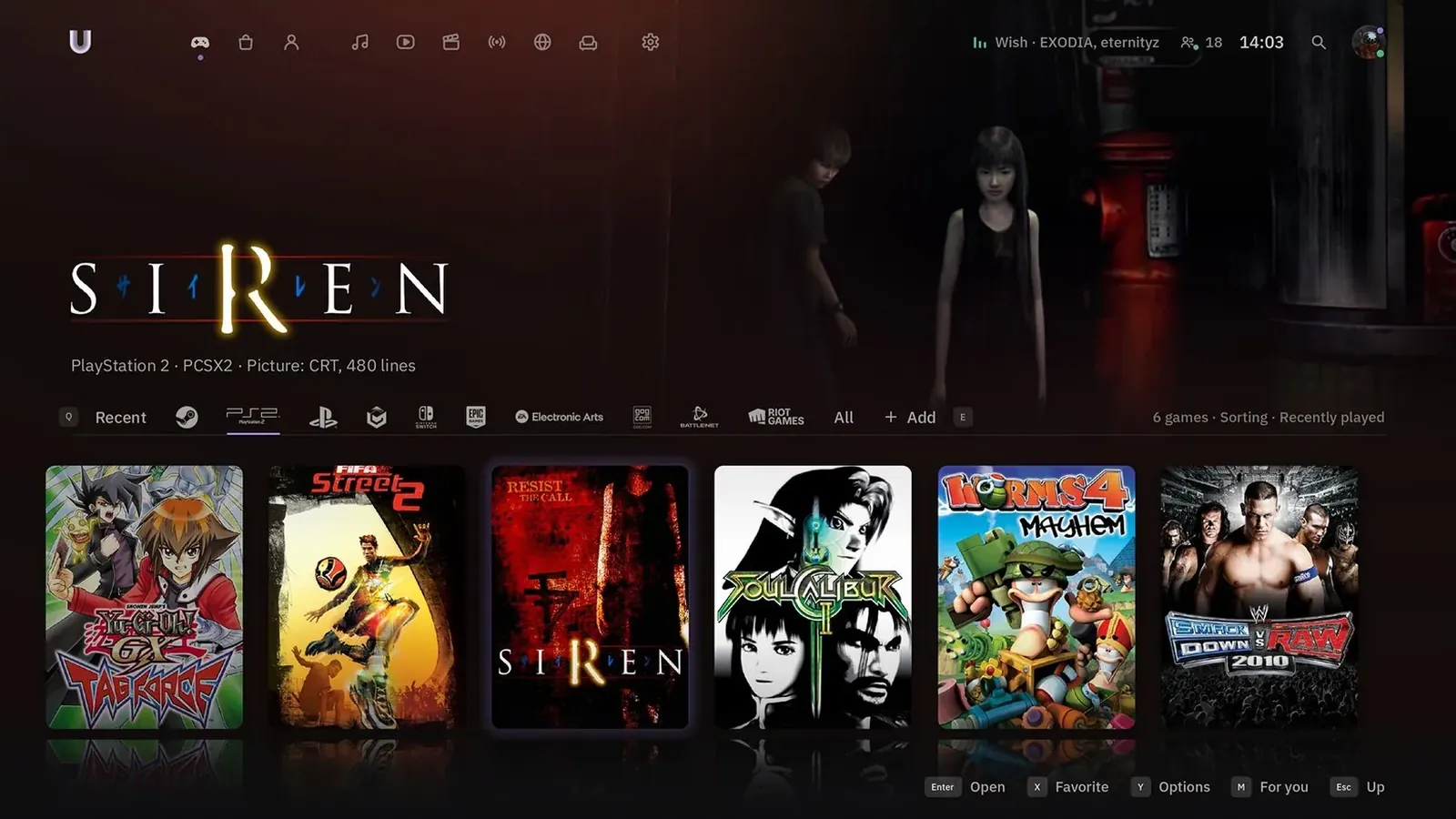
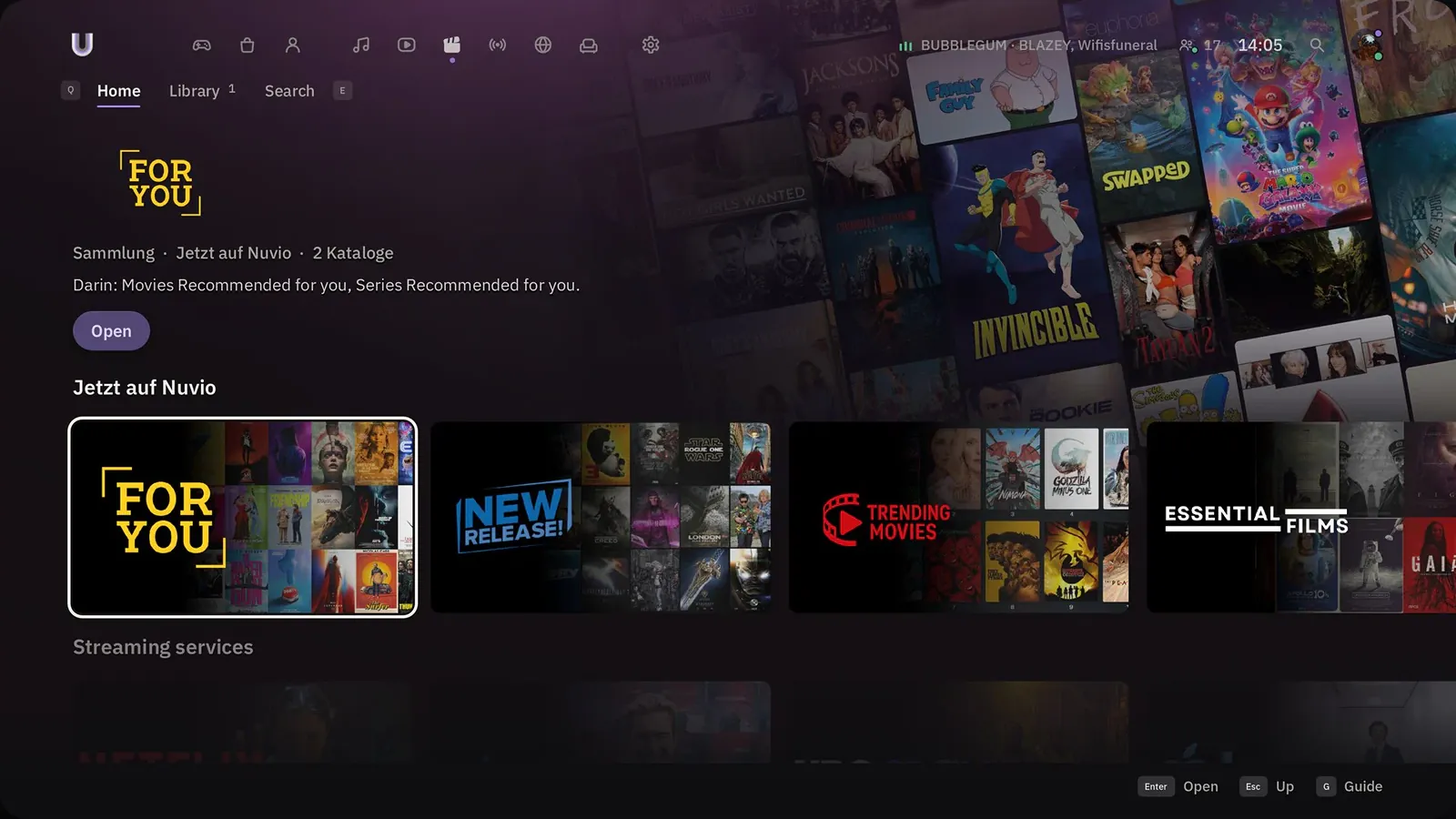
Every game on your PC, from Steam to your emulators, in one controller‑first frontend.
The Guide opens over any game. Try it.
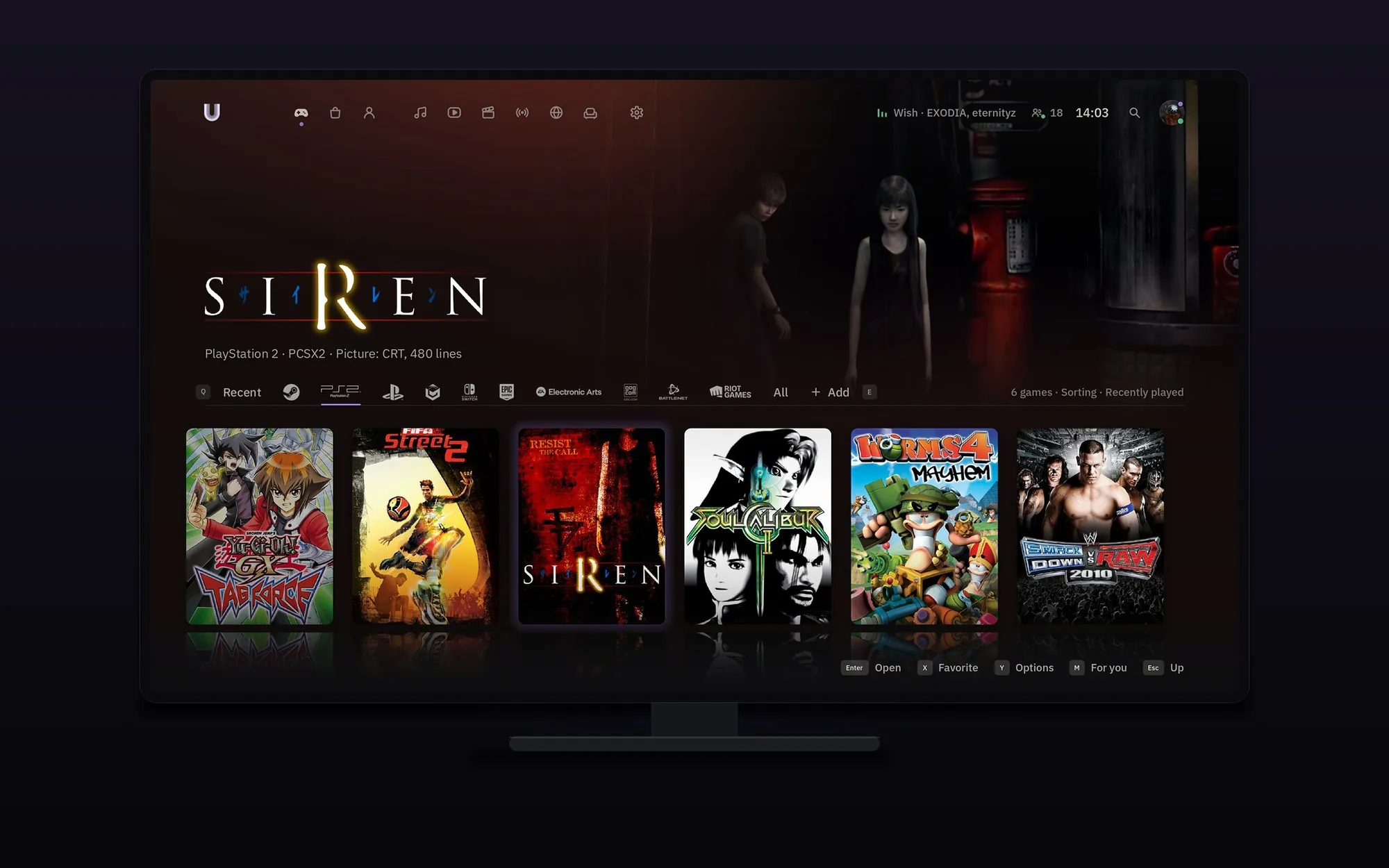
SteamEpicEAGOGUbisoftBattle.netXboxAmazonRiotitch.io
Found automatically · 34 emulator templates
Features
Every game
In a game
-
 The Guide
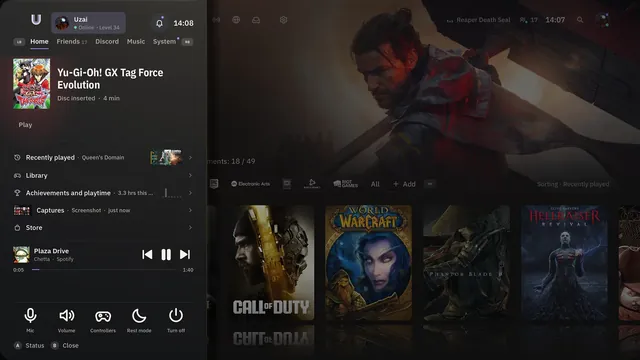
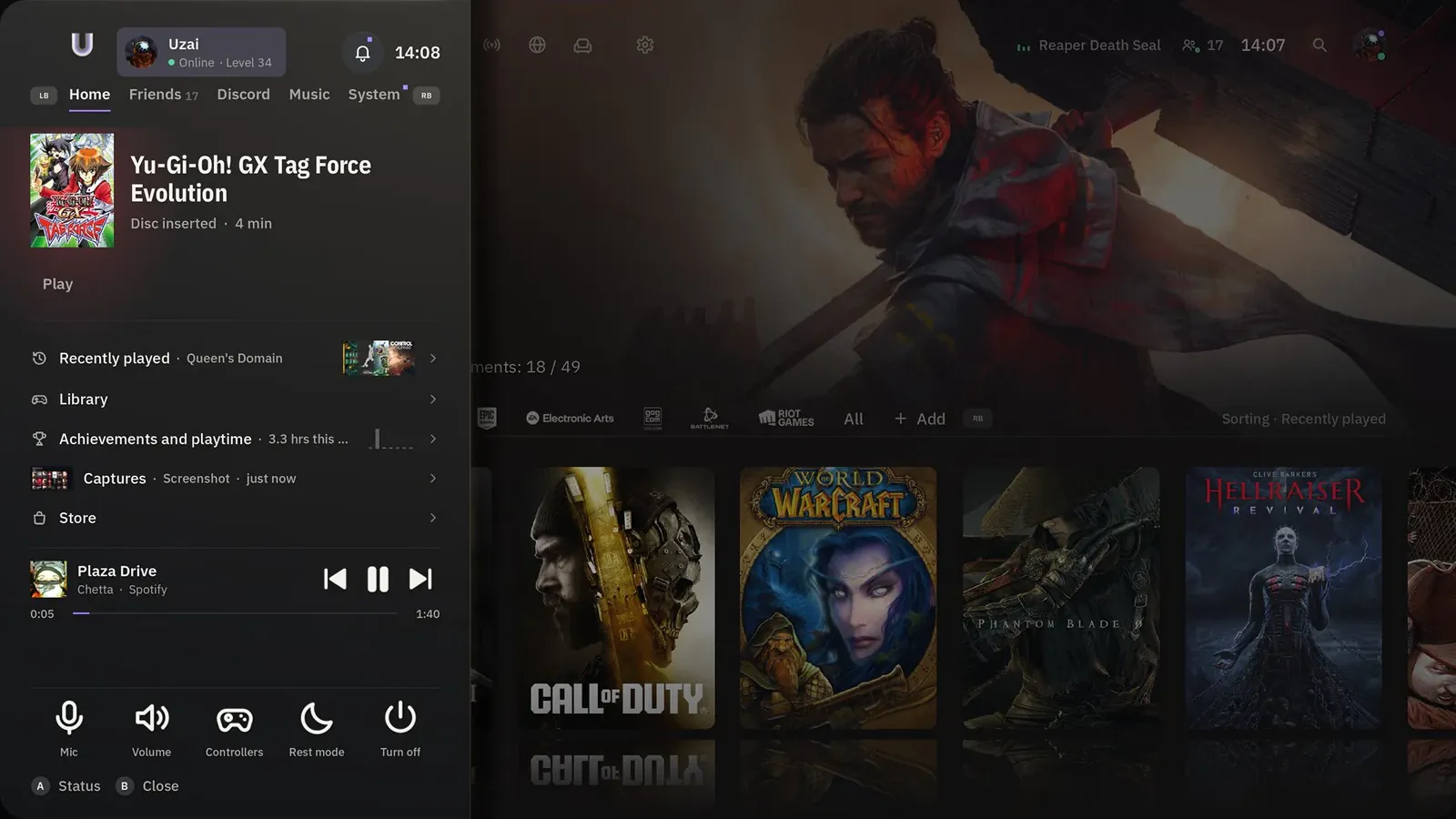
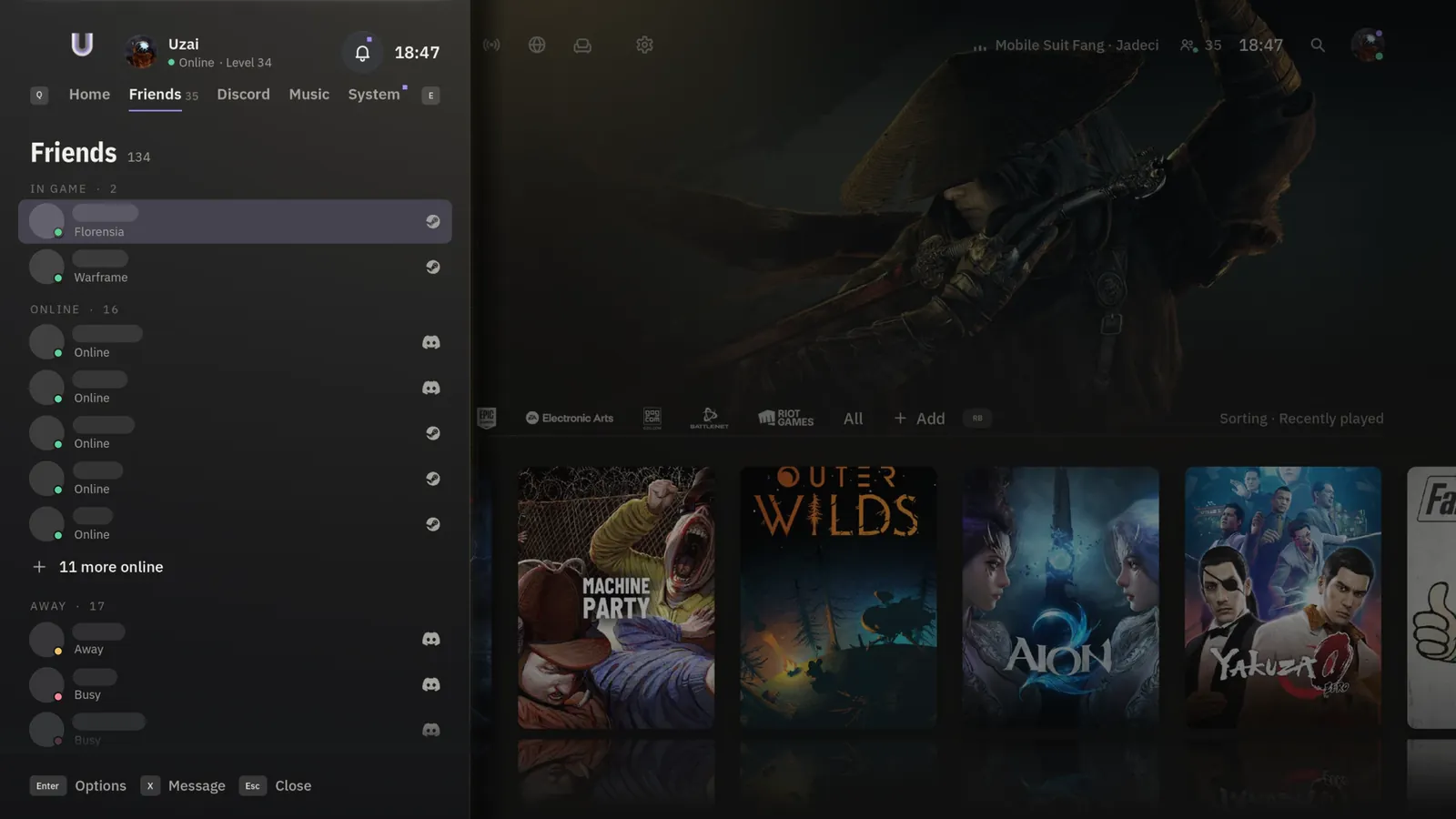
Press the Guide button in any game and Uzai opens on top: friends, Discord, music, captures and power, without leaving the game.
-
 Quick menu
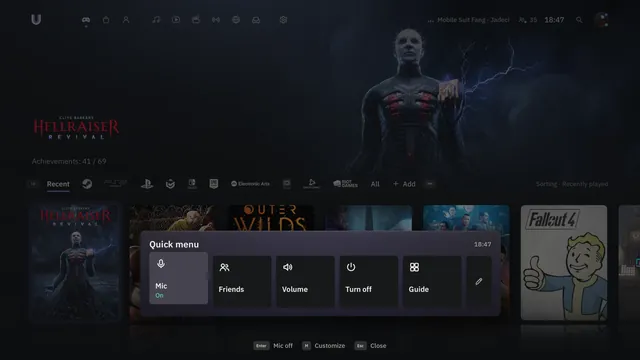
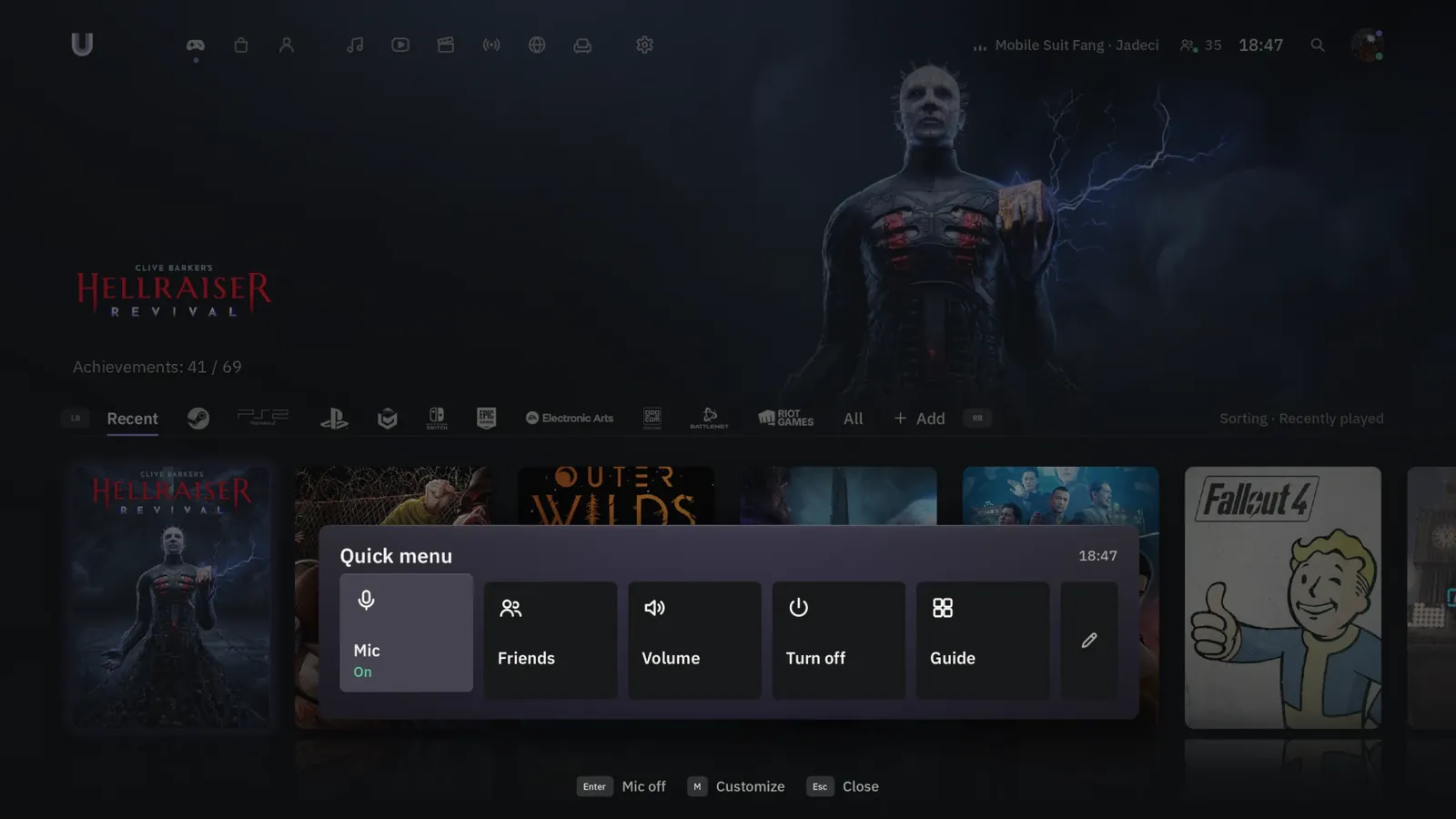
Hold the Guide button for the essentials: screenshot, the last 30 seconds as a clip, mic on and off, rest mode or quit. You choose which tiles it shows.
-
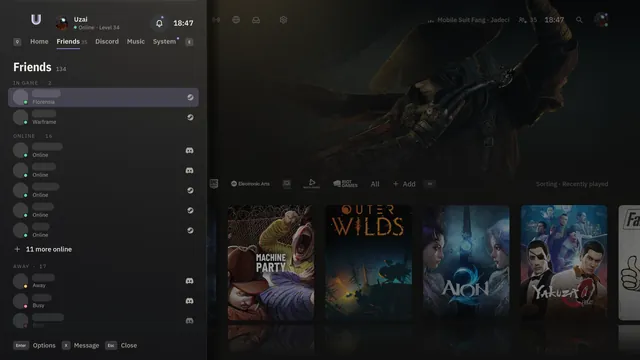 Friends and Discord
Steam and Discord friends in one list, with chat, voice channels and invites, while you play.
-
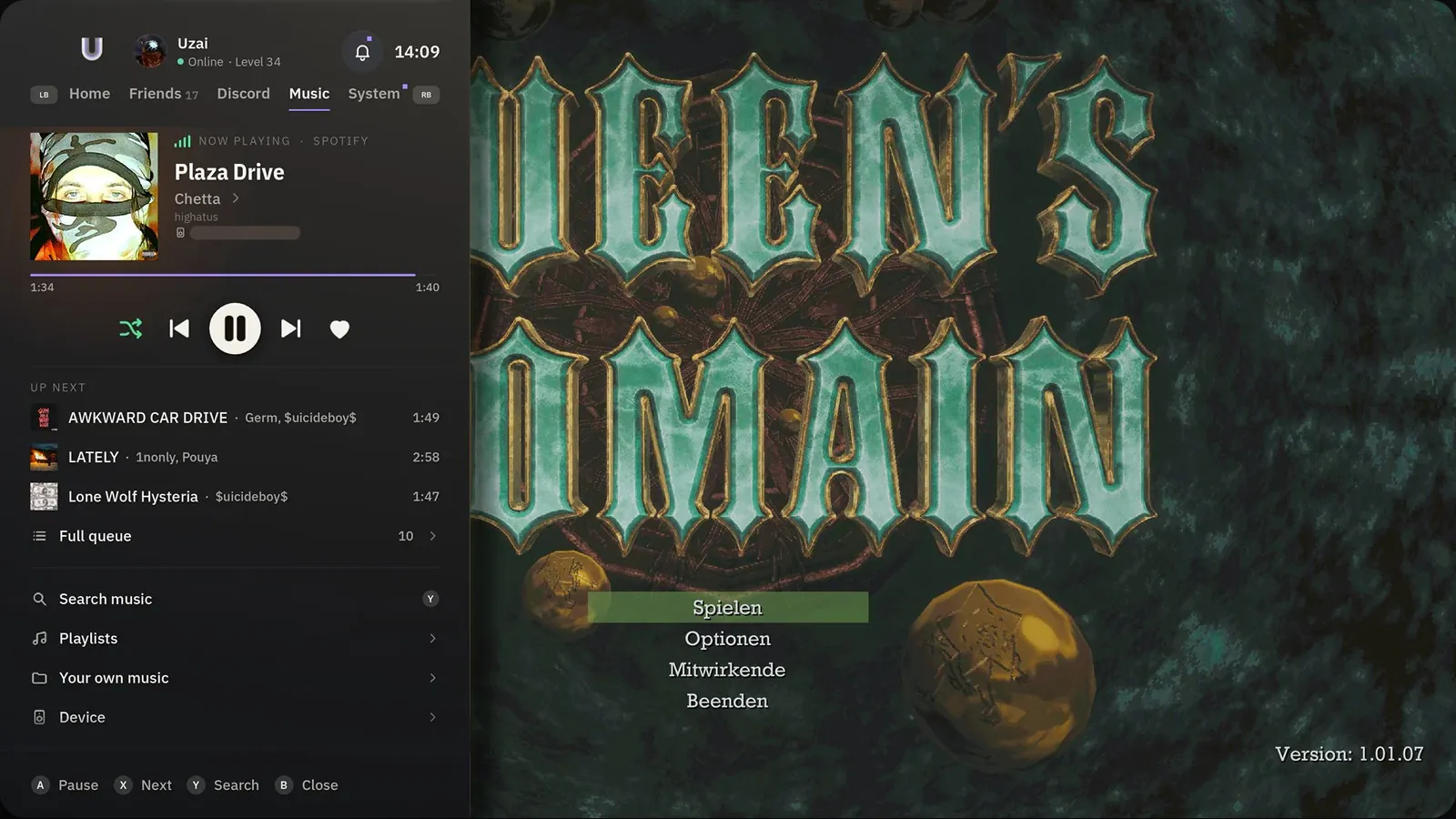
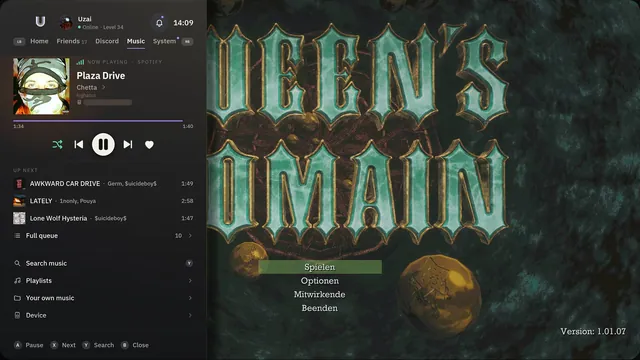 Music while you play
Spotify with queue, playlists and liked songs, or your own music, without leaving the game.
Library
-
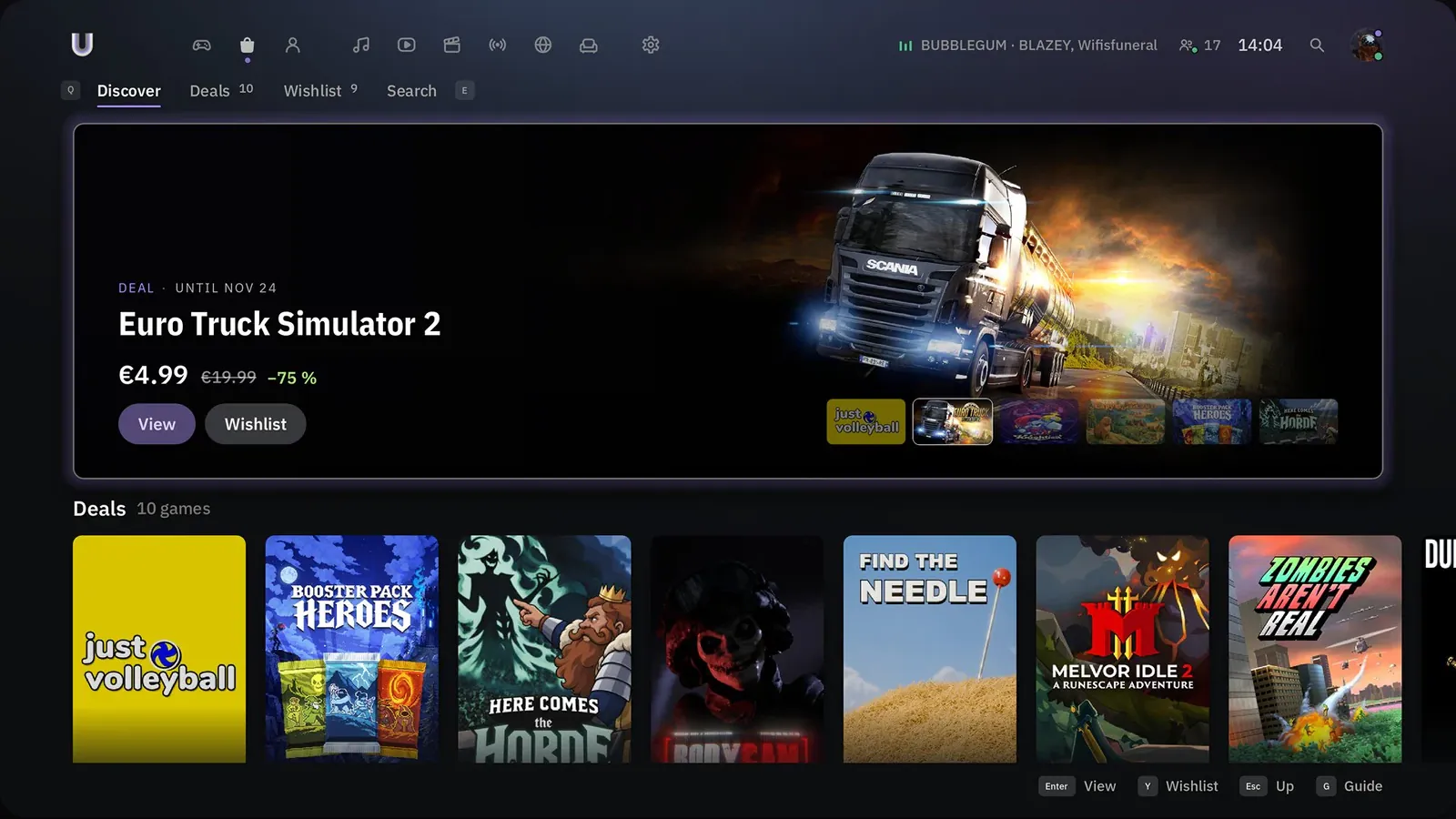
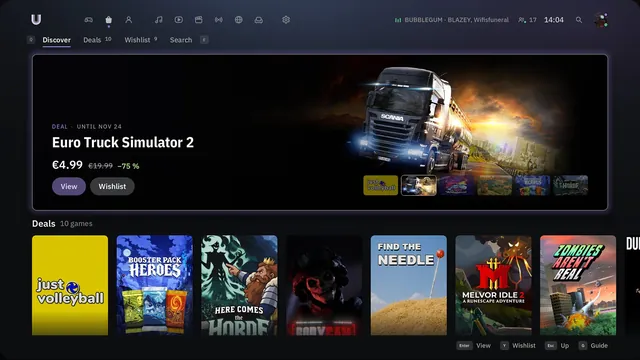 Store
The Steam store made for a controller: deals, wishlist, trailers, reviews and search. Free Epic games too.
-
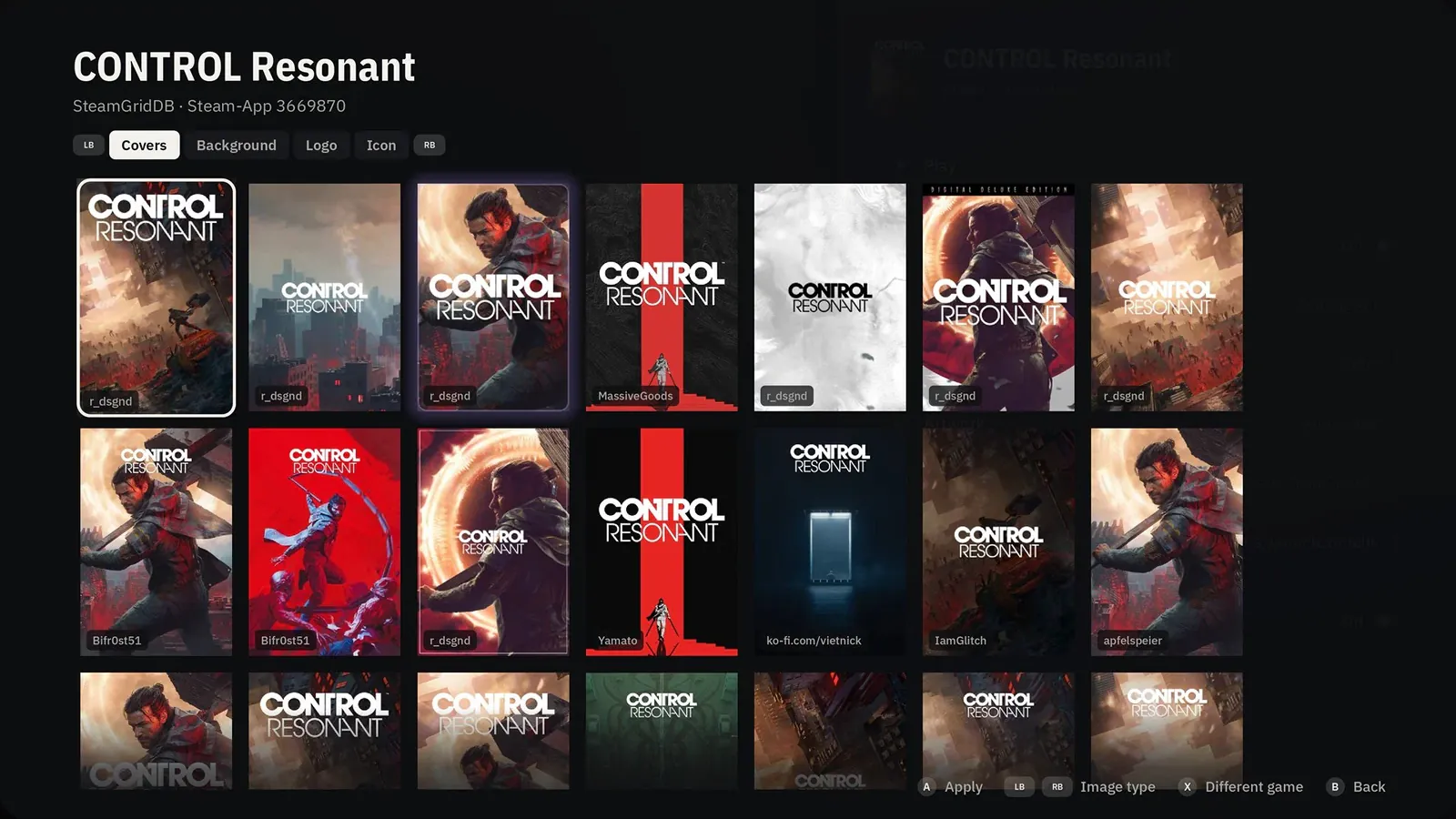
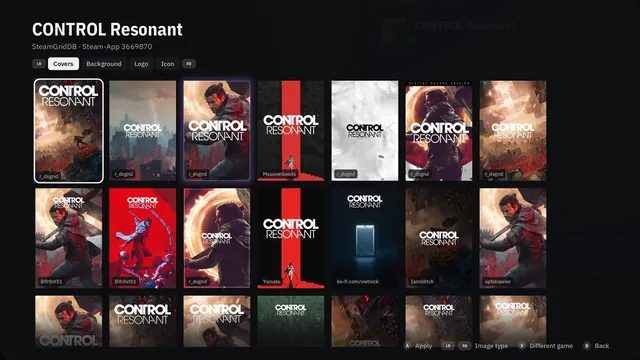 Artwork your way
Covers, backgrounds, logos and icons from SteamGridDB or iiDB, picked with the controller.
-
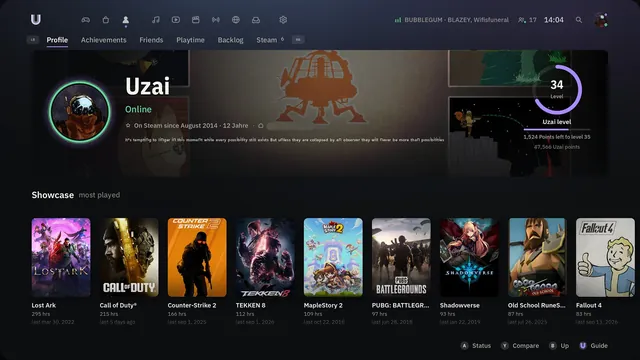 Profile
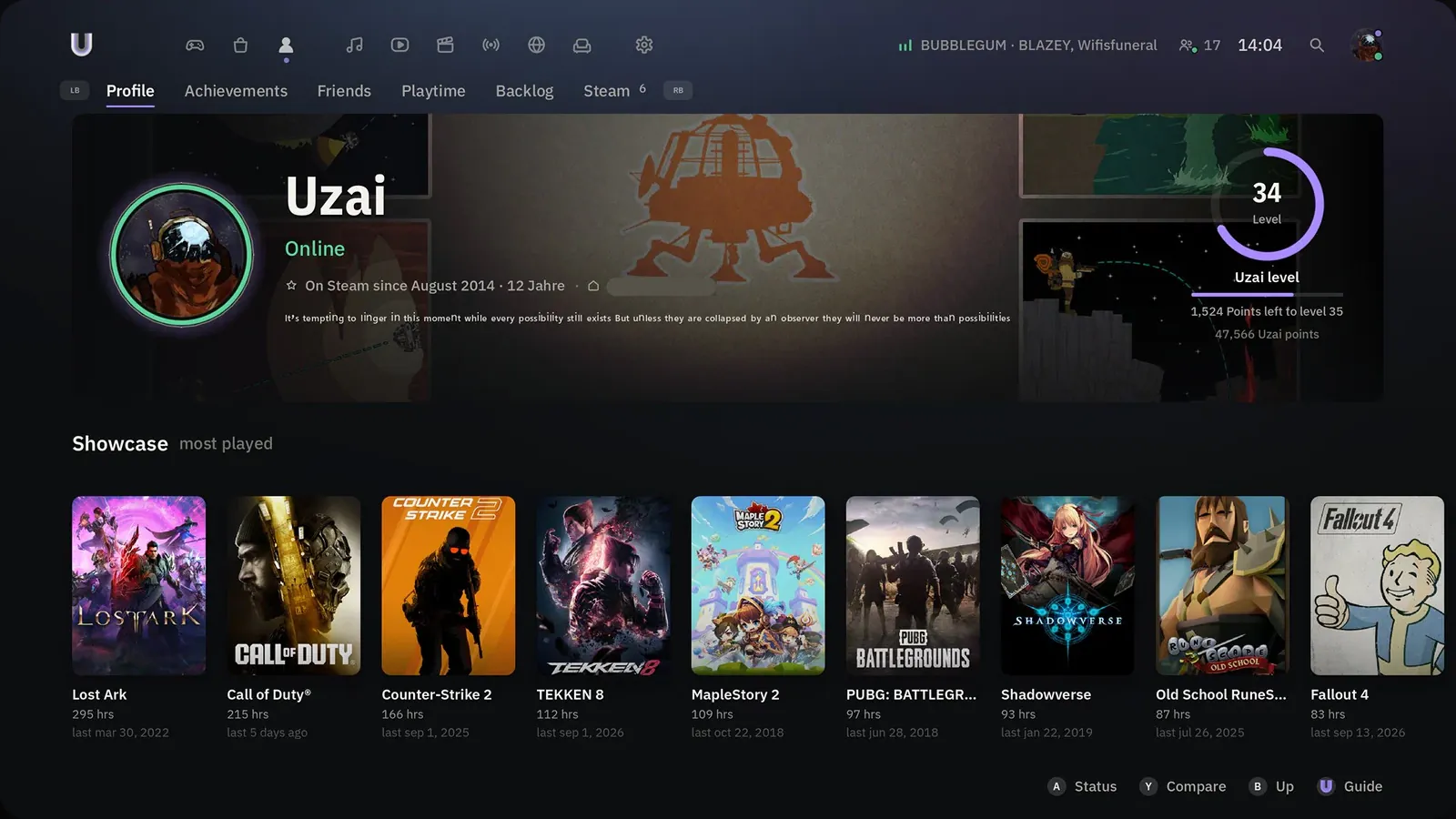
Your level, playtime, most-played games and backlog in one place.
-
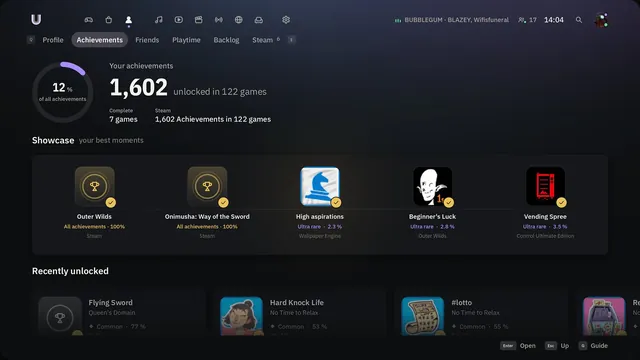 Achievements
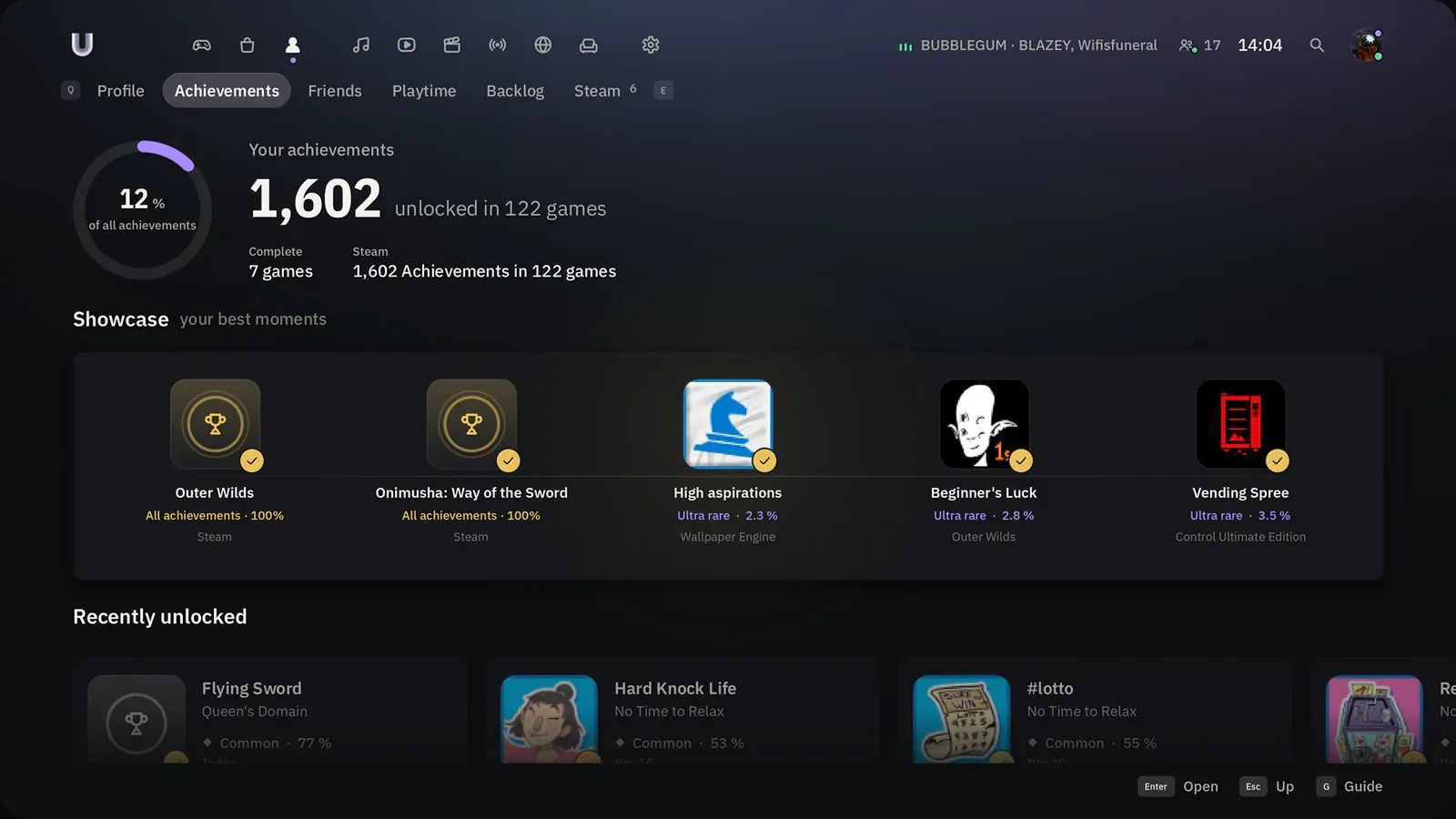
Steam achievements, RetroAchievements for emulated games and Uzai's own levels, with a pop-up in every game.
Watch
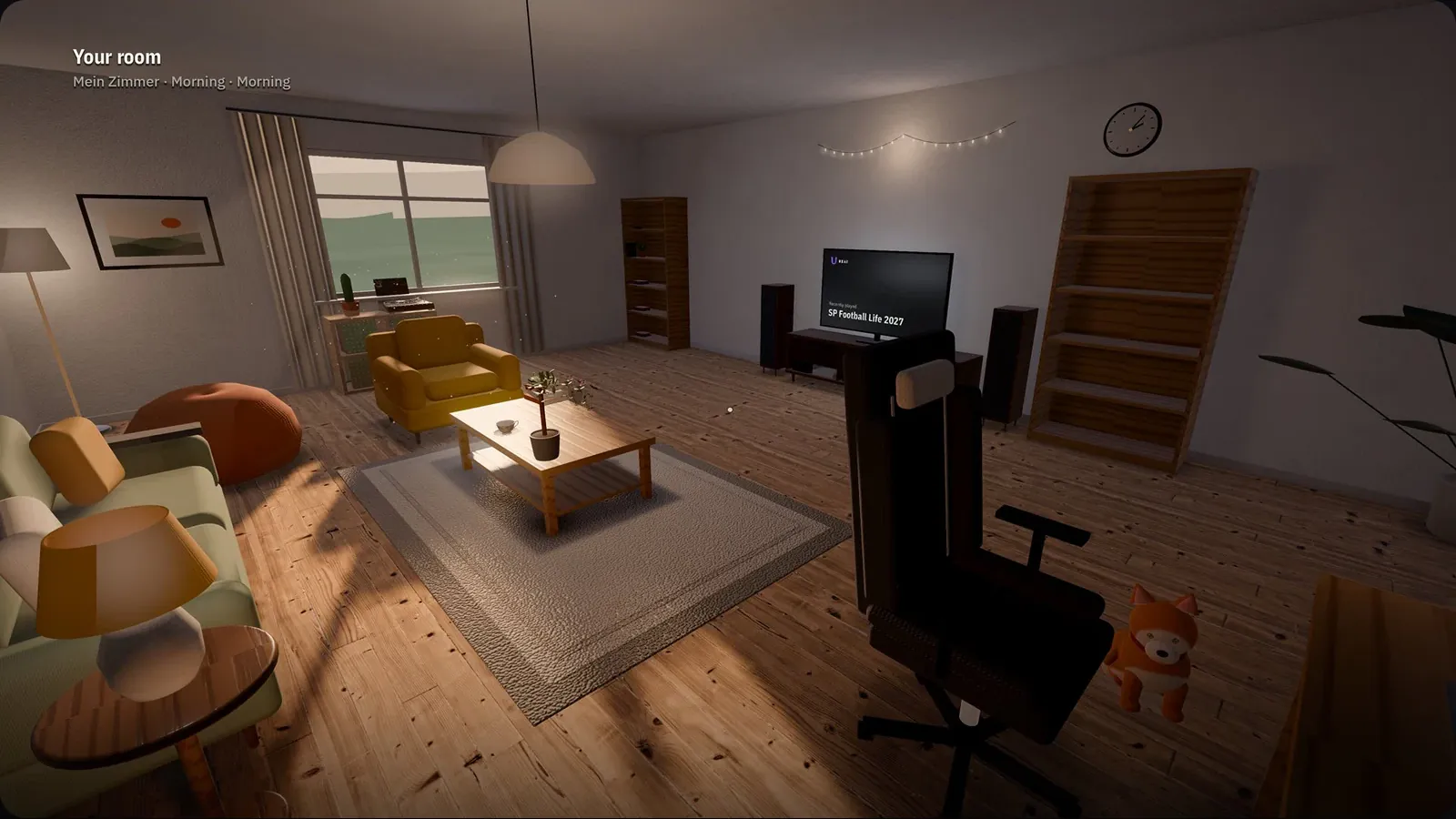
Your Room
Also inside
- Also inside
Picture and emulation
- Frame rate ×2Lossless Scaling doubles or quadruples the frame rate of any game, from the Guide or at launch. Lossless Scaling is sold separately on Steam.
- CRT filtersShaderGlass lays a tube-TV look over the emulator at launch, with presets for PS1, PS2 and GameCube or your own. ShaderGlass is installed separately.
- Retro setup in one stepDownloads RetroArch, DuckStation, PCSX2, PPSSPP, Dolphin and melonDS from their official sources once you agree. Never BIOS, firmware or games.
- Controllers set up for youIn the emulator, player 1 is the controller you started with; players 2 to 4 follow, on PS1 and PS2 through a multitap.
- 34 emulator templatesGames start straight in full screen, without the emulator’s own game list.
- Quick resume for emulatorsQuit from the Guide and the game page offers to continue where you left off, with DuckStation, PCSX2, PPSSPP, Dolphin and RetroArch.
- Settings per gameAudio output, resolution, refresh rate, HDR, mic and music switch over when a game starts and come back after it.
- Launch like a consoleA full-screen launch card, and a short start scene for PlayStation, PS2, GameCube, N64 and Switch games.
- Insert a discA PS1 or PS2 disc in the drive comes first on the home screen and plays from your copy or the disc.
Playing together
- Remote Play Together for every gamePlay local versus and co-op games online with Steam friends, emulator games included, through a Steam game you own such as the free RetroArch. Still being tested with Steam.
- Invite the whole callOne press invites everyone in your Discord call to Remote Play, and player 2 is set up in the emulator for you.
- Go live on DiscordStart your Discord screen share for the game from the Guide, with the Discord app.
- Playing, on DiscordYour Discord status shows the game with its cover and system, emulator and Epic games included.
- Invite without the overlayInvite a friend to the Steam game you’re playing, straight from the Guide.
- Friends at a glanceFriend requests, your Steam and Discord status, and a quiet note when a friend comes online.
In a game
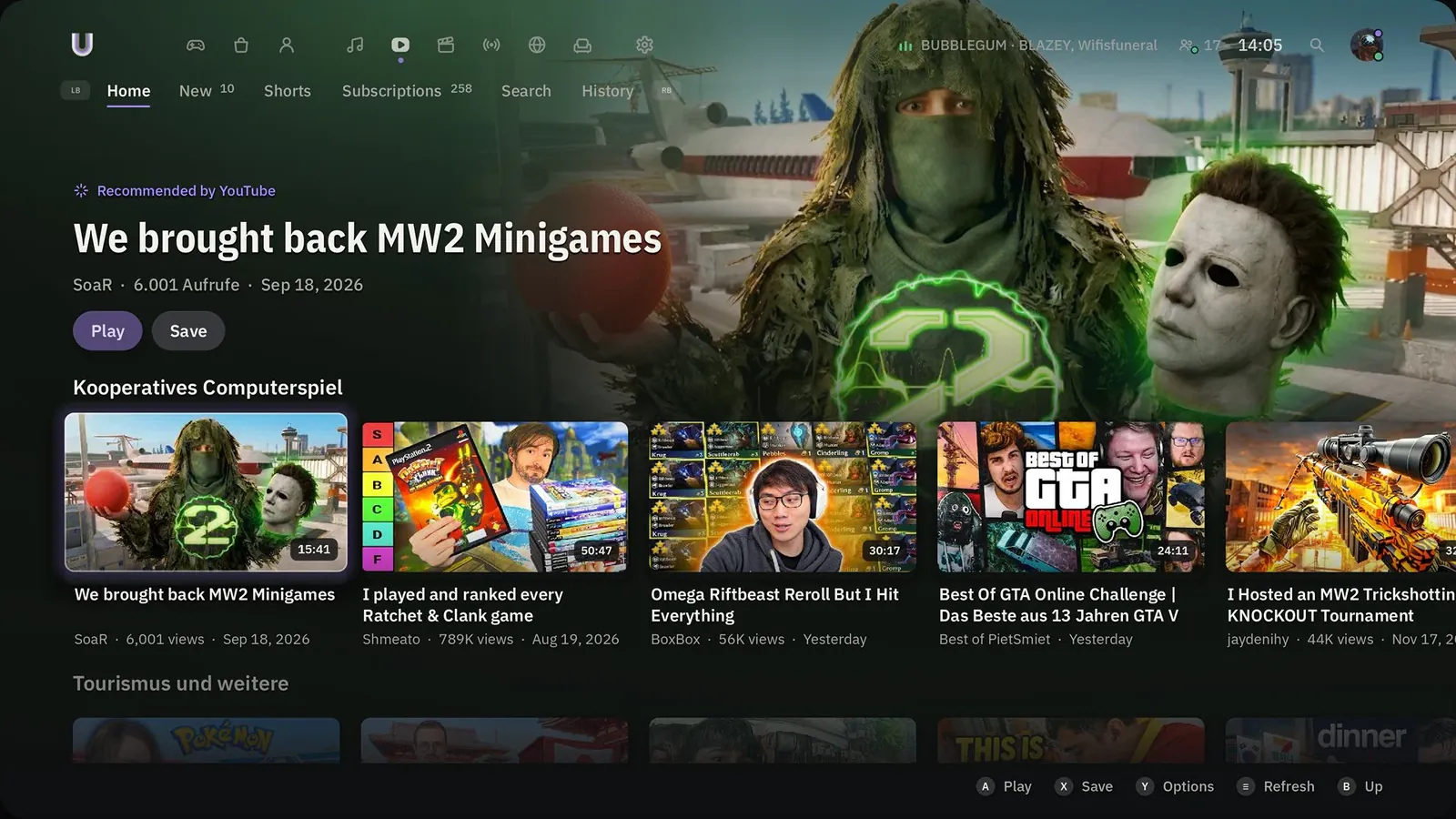
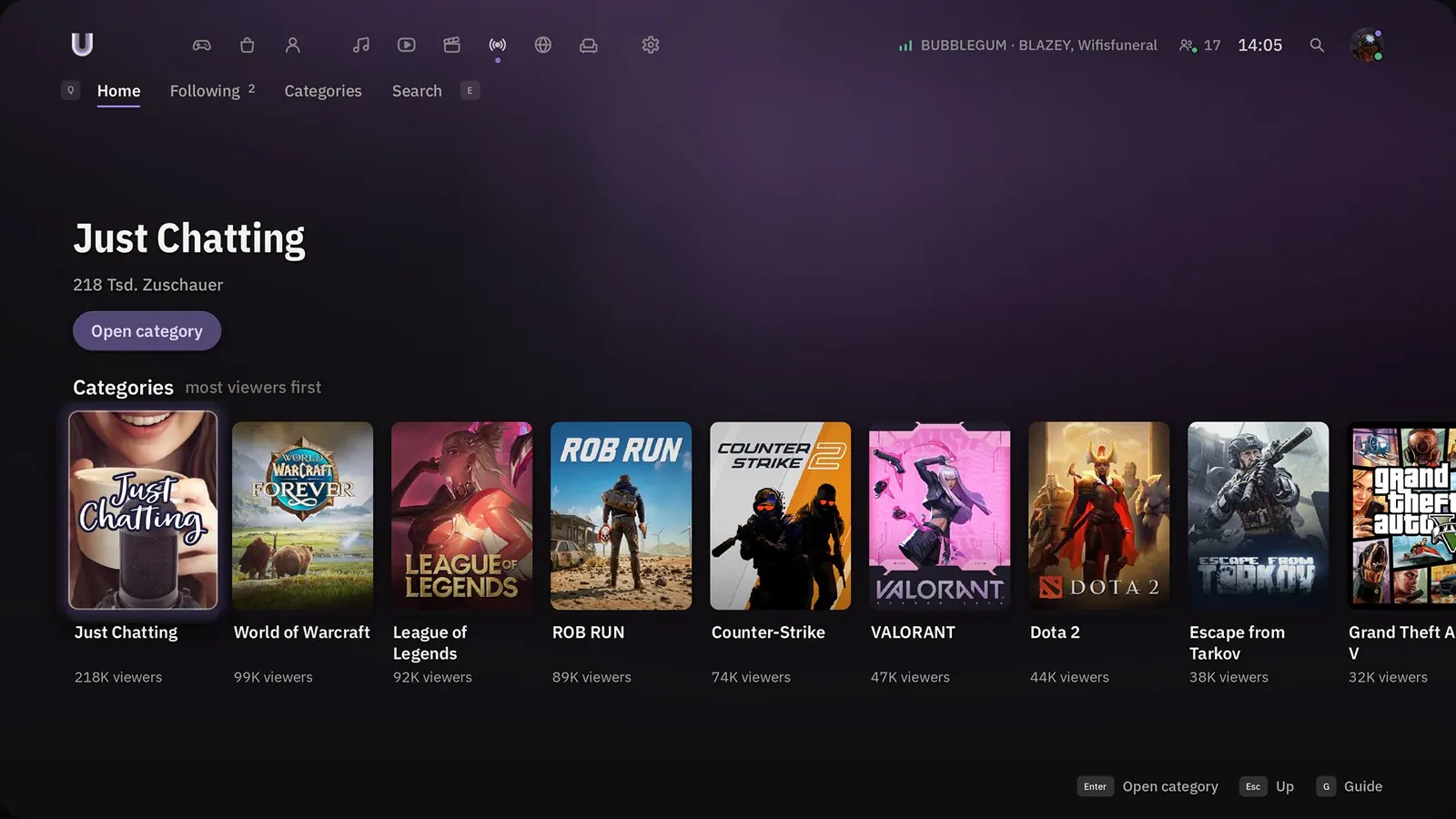
- Picture-in-pictureYouTube, movies and Twitch keep playing small over your game; move it, resize it, give it its own volume.
- Walkthrough helpYouTube guides for the game you’re playing open in picture-in-picture over the game.
- Game volume on LT/RTTurns only the game up or down; a mixer per app and TV or headset are a press away.
- PerformanceCPU, GPU, RAM, VRAM and temperature in the Guide or in a corner of the screen.
- Controller as mouseThe left stick moves the pointer, the right stick scrolls, A clicks.
- CapturesUzai’s own recorder keeps the last 30 seconds; trim, slow motion, and share to your phone by QR or to Discord.
Library
- Every store, one librarySteam, Epic, EA, GOG, Ubisoft, Battle.net, Xbox, Amazon, Riot and itch.io, found automatically.
- Install from UzaiInstall Steam and Epic games without their windows coming up, also overnight. Still being tested on Windows.
- Every Epic game you ownInstalled or not, right next to the rest of your library.
- One entry per gameThe same game in several launchers shows once and starts through the launcher you choose.
Media and console
- YouTube without adsSponsor segments are skipped with SponsorBlock. Ad-free playback may break YouTube’s terms.
- A browser for the couchEvery link is a target, with tabs, zoom and reader mode.
- Phone as keyboardScan a QR code and type on your phone.
- Feels like a consoleStarts with Windows, rest mode and quick resume.
- Screensaver and sleep timerA slow pan over your games’ artwork, and timers for music and video.
- Profiles for the familyProfiles with a PIN, and a friendly daily play time for children.
- HandheldsSteam Deck and Windows handhelds: button icons, battery and power profiles.
- Set up with the controllerWi-Fi, Bluetooth and pairing up to four controllers, no mouse needed.
- Uzai DoctorKnown problems show up as cards with a safe fix.
Get Uzai
Windows 10 or 11 (64-bit) and an Xbox or PlayStation controller. Keyboard and mouse work too.
Opens the latest release on GitHub.
- Download
Uzai-windows.zipfrom Releases. - Unzip and startUnzip it anywhere and start
Uzai.exe. KeepUzai.pcknext to it. - Set upA short setup walks you through controller, game folders and accounts. Every account is optional.
Updates install themselves
Uzai checks for a new release once a day, verifies its signature and puts it in place when you close Uzai. Change it under Settings › System › Updates.
Portable
Create an empty folder uzai-daten next to Uzai.exe.
The Guide button
So that it opens only Uzai, Uzai turns off Steam's own Guide-button shortcut on first start. It asks first, you can keep Steam's, and you can switch it back under Settings › Controller.
Build from source
Uzai is written in GDScript with Godot 4.5.1. The whole interface is built in code. Source on GitHub.
godot --path . -- --demo --windowed --no-boot
godot --headless --path . res://tests/check.tscn
godot --headless --path . --export-release "Windows" build/Uzai.exe
Privacy
Nothing is sent anywhere unless you connect a service.
- No account neededSteam, Epic and PC games are found without signing in. Every sign-in is optional.
- Your sign-ins stay on your PCIn the Windows credential vault, never in plain files, logs or URLs.
- No telemetryThe daily update check only asks GitHub for the latest release.
- Signed updatesAn update is installed only if its signature matches the key built into Uzai.
- This websiteNo cookies, no trackers, no analytics. Fonts, pictures and sounds come from this site. Guide settings and achievements stay in this tab and go when you close it.
Legal
Uzai is not affiliated with Valve, Microsoft, Sony, Nintendo, Epic Games, Electronic Arts, Spotify, Discord, Google or Twitch. Game titles, artwork and logos in the screenshots belong to their owners and only illustrate the software. yt-dlp, mpv and Deno are downloaded and run as separate programs; ad-free YouTube playback may break YouTube's terms. Console logos are loaded from Wikimedia Commons at runtime.
License: GPL-3.0. Bundled fonts, models, sounds and the browser filter list keep their own licenses; they are listed under About Uzai in the settings and next to the files. To report a security problem, see SECURITY.md.
Set in IBM Plex Sans and IBM Plex Sans Condensed under the SIL Open Font License 1.1 (license text).